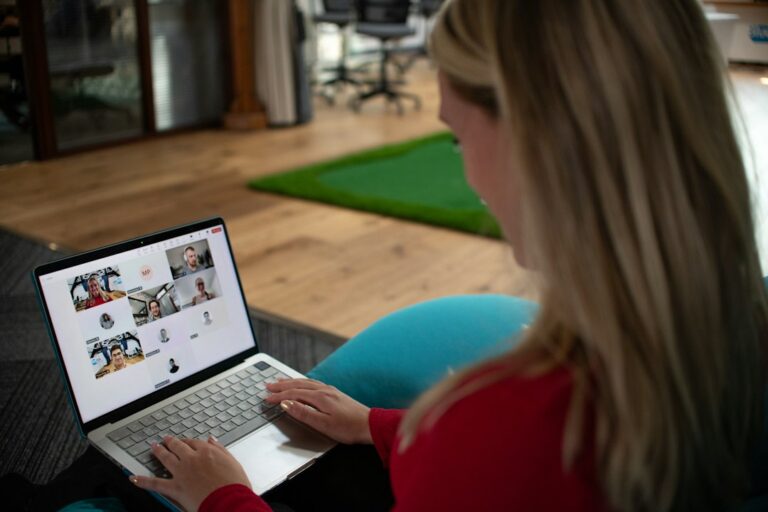
When you hire an offshore team member or a virtual assistant, one of the first practical questions is what they will actually work on. Most businesses end up choosing between three options: letting the person use their own computer, sending them a company laptop, or giving them a Cloud PC.
Each option works, but they suit different situations. This guide compares them on security, cost, setup and what happens when the person moves on, so you can choose the right one for your business.
Why their own computer is the weakest option
Letting offshore staff use their own computer is the quickest way to start, which is why so many businesses begin there. The problem is that your client files and passwords end up on a device you do not manage.
You cannot check whether that computer is updated, whether it has antivirus, or who else in the household uses it. When the person leaves, you also have no way of knowing what was downloaded or saved along the way. For a business that handles client records, tax files or health information, that is hard to explain to a client, an insurer or an auditor.
Option 1: A company laptop
A company laptop is a computer your business owns, set up and managed by your IT provider before it is sent to the staff member. It is enrolled in device management, so security settings, updates and antivirus are applied automatically, and the drive is encrypted.
A managed laptop works well when the person needs to work offline, uses software that must be installed locally, or works with large files and graphics. If the laptop is lost or stolen, it can be locked or wiped remotely.
The downsides are mostly practical. Buying a laptop and posting it overseas takes time and money, hardware problems are harder to fix from another country, and the laptop needs to come back when the person leaves. Your business data also lives on the device itself, even though it is encrypted.
Option 2: A Cloud PC

A Cloud PC is a full Windows desktop that runs in a data centre rather than on a physical computer. The staff member signs in from their own laptop or a basic device and works inside the Cloud PC, while your files and apps stay in the cloud. Digitek’s Cloud PCs run on Microsoft’s Windows 365 in Australian data centres.
Because the work happens inside the Cloud PC, you can stop files being copied to the person’s own computer. Copy and paste, USB drives, printing and website access can be restricted, and sign-in is protected with multi-factor authentication. When someone leaves, their access is switched off straight away and the licence can be reused for the next person.
A Cloud PC does need a reliable internet connection, because the staff member is working on a desktop that runs elsewhere. Everyday office work needs only a few megabits per second, but a patchy connection makes the desktop feel slow. There is also a monthly Microsoft licence for each Cloud PC, on top of your IT support.
Cloud PC vs laptop: side by side
| Company laptop | Cloud PC | |
|---|---|---|
| Where your data sits | On the laptop, encrypted | In the Cloud PC, in Australian data centres |
| Getting started | Buy, set up and post the laptop | Set up remotely, no hardware to send |
| Working offline | Yes | No, it needs an internet connection |
| If the device is lost | Lock or wipe it remotely | Nothing is stored on the device to lose |
| When someone leaves | Switch off access and get the laptop back | Switch off access and reuse the licence |
| Ongoing cost | Hardware, postage and support | Monthly licence and support |
Which one suits your business?
For most offshore and virtual assistant roles, a Cloud PC is the simpler and safer choice. The work is usually done in Microsoft 365, a browser and a few business apps, and the main concern is keeping client data under your control.
A company laptop makes more sense when:
- The person needs to work without a reliable internet connection
- The role uses design, video or other software that needs a powerful local computer
- The staff member is based in Australia and can collect or return the laptop easily
Some businesses use both. Local staff get managed laptops, while offshore team members work on Cloud PCs, and everyone signs in to the same Microsoft 365 environment.
What every setup needs
Whichever option you choose, a few controls matter for every remote team member:
- Multi-factor authentication on every account
- A business password manager, so passwords are shared securely rather than by email or chat
- Access to files and apps set by role, so each person only sees what their job needs
- Phishing training, because remote staff receive the same scam emails as everyone else
- A written offboarding process, so access is removed the day someone leaves
It is also worth knowing your privacy obligations. If your business is covered by the Privacy Act and offshore staff can see personal information about your clients, Australian Privacy Principle 8 generally expects you to take reasonable steps to make sure that information is handled properly overseas, and your business stays accountable for how it is handled. Our guide to giving offshore staff access to client files safely covers this in more detail.
How Digitek helps
Digitek IT sets up and supports Cloud PCs for offshore staff and virtual assistants, along with the Microsoft 365 security, password management and access controls around them. For staff in Australia, we can also set up and manage company laptops. Our page on IT security for offshore and remote staff explains how it all fits together.
If you are still looking for offshore staff, our sister company Digitek Outsourcing helps Australian businesses find and manage virtual assistants. Find out more about our Cloud PCs, or call 02 4504 8643 to talk about the right setup for your team.